




In today’s digital landscape, a website is not just an online platform; it’s the core of business operations, marketing, and customer interaction.
For WordPress users, ensuring website safety is crucial, and website backup offers one of the simplest yet most effective solutions to secure your site through regular backups.
A solid website backup strategy protects your website from unexpected data loss, cyberattacks, and technical failures. Whether you’re running a small blog or a large eCommerce store, implementing website backup is an investment in your website’s longevity and security.
Understanding Website Backups with Website Backups
A website backup is a saved copy of your website’s files and data, allowing you to restore it if something goes wrong. Website backup simplifies this process by automating the entire backup workflow.
What Does a WordPress Backup Include?
A typical backup includes two main components:
Database: Stores your posts, pages, users, settings, and comments.
Website Files: Includes your theme, plugins, media uploads, and configuration files.
Together, they ensure your site can be fully restored to its previous working version. Website backup captures both components seamlessly, ensuring nothing is left behind during the backup process.
How Backups Work for WordPress Sites
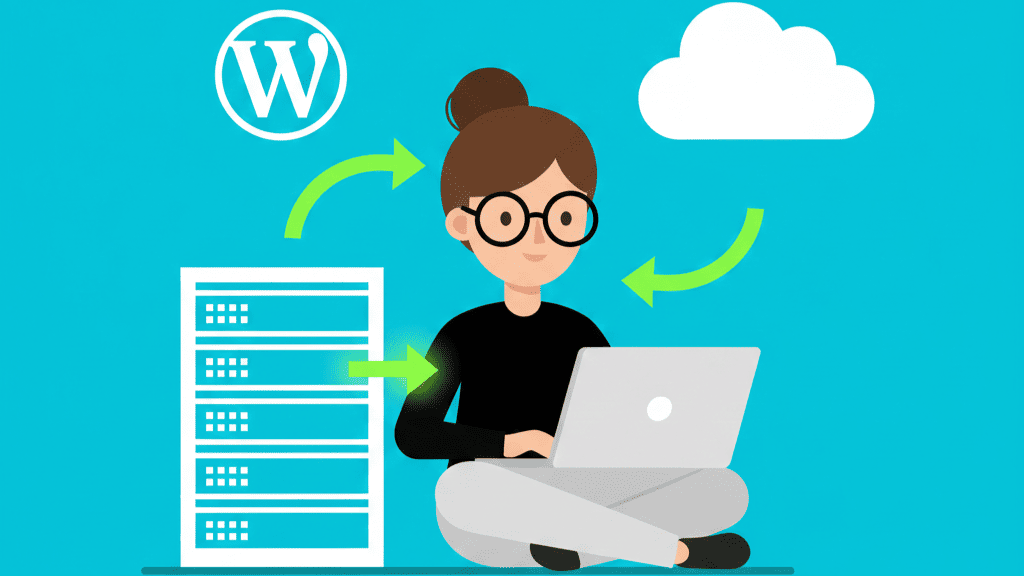
Backups work by taking a snapshot of your entire website at a specific time. You can save this backup locally (on your server or computer) or externally (in cloud storage). With website backup, you can schedule automatic snapshots that run on your preferred frequency.
In the event of a crash, hack, or accidental change, this website’s backup can be restored, minimizing downtime and data loss.
The Importance of Regular Website Backup
Regular backups are essential for keeping your website safe and ensuring smooth recovery in case of problems. Using website backup ensures you’re never caught off guard by unexpected issues.
Safeguarding Against Data Loss
Even minor human errors like deleting a post or file can cause data loss. A recent website backup helps restore everything without rebuilding from scratch. This peace of mind is invaluable for busy website managers.
Protection from Website Hacks and Malware
Since WordPress is widely used, it’s a common target for hackers. If your site is compromised, restoring a clean website backup is often the quickest way to remove malicious code and regain control. Website backup ensures you always have a clean version to fall back on.
Recovery After Server or Hosting Failures
Hosting providers can face downtime, technical issues, or even permanent data loss. With an external website backup, your website’s data remains safe, even if your host’s server fails.
Common Causes of WordPress Data Loss
Understanding what causes data loss helps highlight why website backup is indispensable.
Human Errors
Mistakenly deleting files, changing code, or updating themes incorrectly can break your site. Website backup lets you reverse such errors easily with just a few clicks.
Plugin or Theme Conflicts
Sometimes, installing incompatible or outdated plugins and themes can lead to malfunctions. Having a website backup allows a quick rollback to a stable version.
Server Crashes and Hosting Issues
Even the best hosting services experience technical glitches. Website backup ensures your data is never solely dependent on your web host’s reliability.
How to Back Up a WordPress Website Using Website Backup
There are several ways to back up your WordPress website, but website backup stands out as one of the most efficient solutions available.
Using the website backup Plugin for Easy Backup
website backup makes backup management simple and straightforward. The plugin automates the process, schedules backups, and stores data safely on the cloud, requiring minimal technical knowledge.
Manual Backup via cPanel or FTP
Manual methods using cPanel or FTP provide greater control alongside website backup. You can manually download your website files and database, ensuring you always have an offline copy.
Scheduling Automatic Backups with Website Backup
Automated backups through website backup are the most reliable solution. Setting them to run daily or weekly ensures that even the latest changes are preserved without manual intervention.
Best Practices for Backup Management
Creating backups is one thing managing them correctly with tools like website backup is what ensures long-term website security.
Setting a Backup Frequency
Choose a backup schedule that matches your website’s activity. High-traffic or eCommerce sites should back up daily using website backup, while smaller sites can opt for weekly schedules.
Verifying and Testing Backups
Regularly verify that your backups are complete and functional. Website backup provides test restore options to ensure the backup works properly before an emergency occurs.
Storing Multiple Copies Securely
Store backups in multiple locations locally, on the cloud, and on an external hard drive. This redundancy guarantees data safety even if one source fails.
Conclusion
Backing up a WordPress website is not just a preventive measure’s an essential maintenance practice. Whether it’s accidental deletion, malware infection, or hosting failure, a backup can save you from hours of stress and costly downtime.
By implementing website backup and proper management practices, you ensure website stability, business continuity, and peace of mind.
FAQs
1. How often should a WordPress website be backed up?
Backup frequency depends on how often your website changes. Daily backups with website backup are ideal for active sites, while weekly backups work for smaller or static ones.
2. What are the best backup plugins for WordPress?
Popular and reliable options include website backup, UpdraftPlus, Jetpack, BlogVault, BackupBuddy, and Duplicator. Each offers automated scheduling and cloud storage support.
3. Where should backups be stored?
It’s best to store backups in multiple locations, such as Google Drive, Dropbox, Amazon S3, or external hard drives, to reduce the risk of total data loss.
4. How long should backups be kept?
Keep at least the last 3–5 backup versions. This allows you to roll back to a clean version if issues are discovered later.
5. Can backups slow down my website?
Only if backups are performed during peak traffic hours or saved on the same server, schedule backups during low-traffic periods, and use external storage for better performance with website backup.
6. What should I do if my website crashes despite backups?
First, identify the cause, whether a plugin conflict, malware, or hosting failure. Then restore the site using your most recent verified website backup. Always fix the underlying issue before restoring to avoid repetition.